News · · By the usi3d team
usi3d in ChatGPT, Claude or Cursor: the API and MCP server
Since 24 October, the AI you already use can work with your usi3d account. Add the MCP server https://usi3d.com/mcp as a connector in ChatGPT or Claude, or with an API key in Claude Code, Codex or Cursor, and your assistant can diagnose printer problems and create 3D models with your credits, telling you the cost first. You need a plan with API access: Pro, Max or Business.
Key points
- The usi3d MCP server address is https://usi3d.com/mcp and it works with ChatGPT, Claude, Claude Code, Codex, Cursor and other MCP clients.
- ChatGPT and Claude connect without copying any key: you grant access on the “Connect to usi3d” page and choose what it can do and until when.
- Your AI can diagnose faults, talk them through, choose filament, quote and create 3D models, animate them and organise your projects.
- It quotes first, which costs nothing, and asks you before spending credits.
- The API and the MCP come with the Pro, Max and Business plans; the Free plan doesn't include them.
What an MCP server is and what it adds to usi3d
The Model Context Protocol (MCP) is an open standard that lets an AI assistant use tools from other services. usi3d publishes its tools on an MCP server: your assistant sees them, decides when to call them and shows you the result inside the conversation.
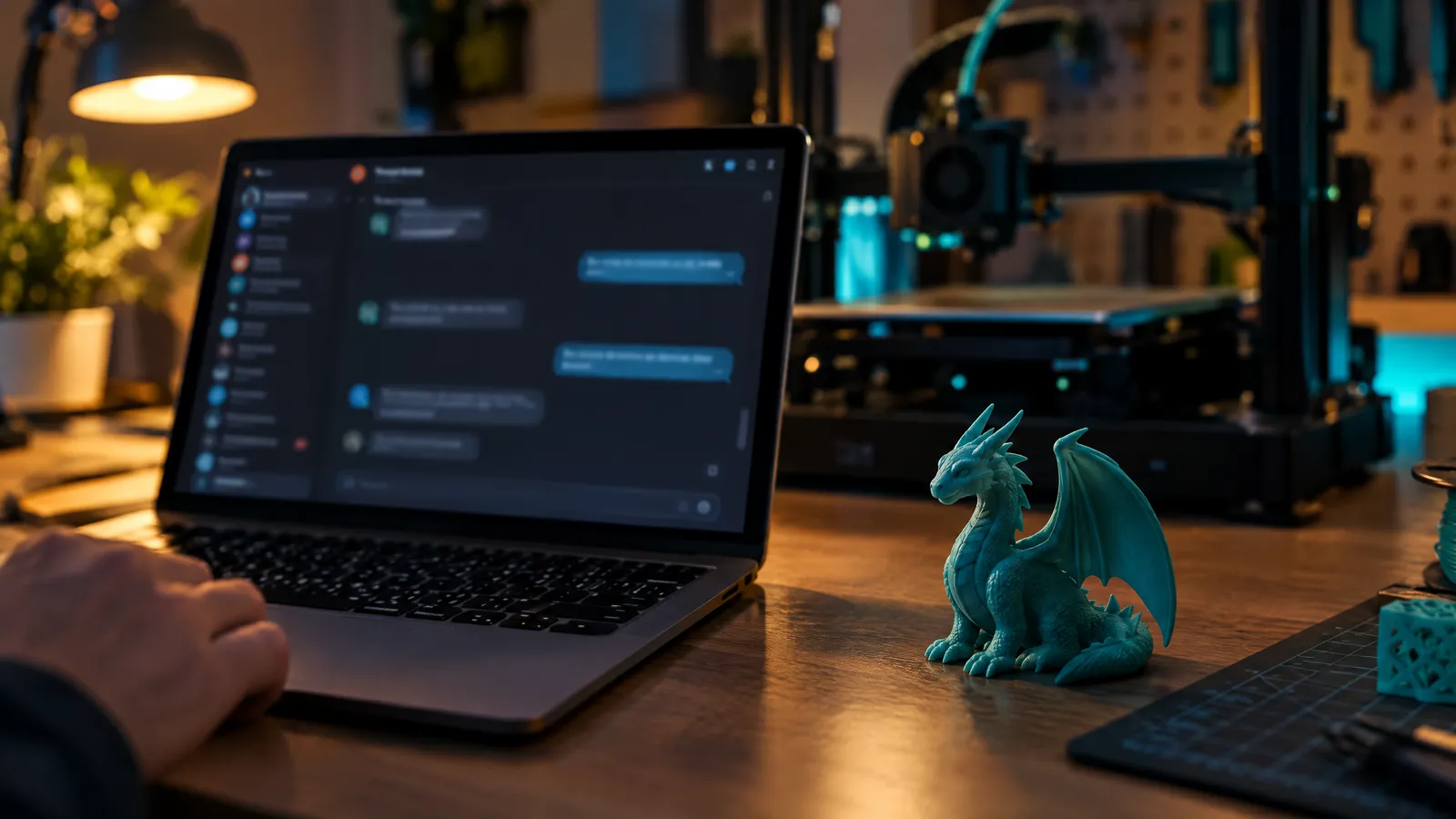
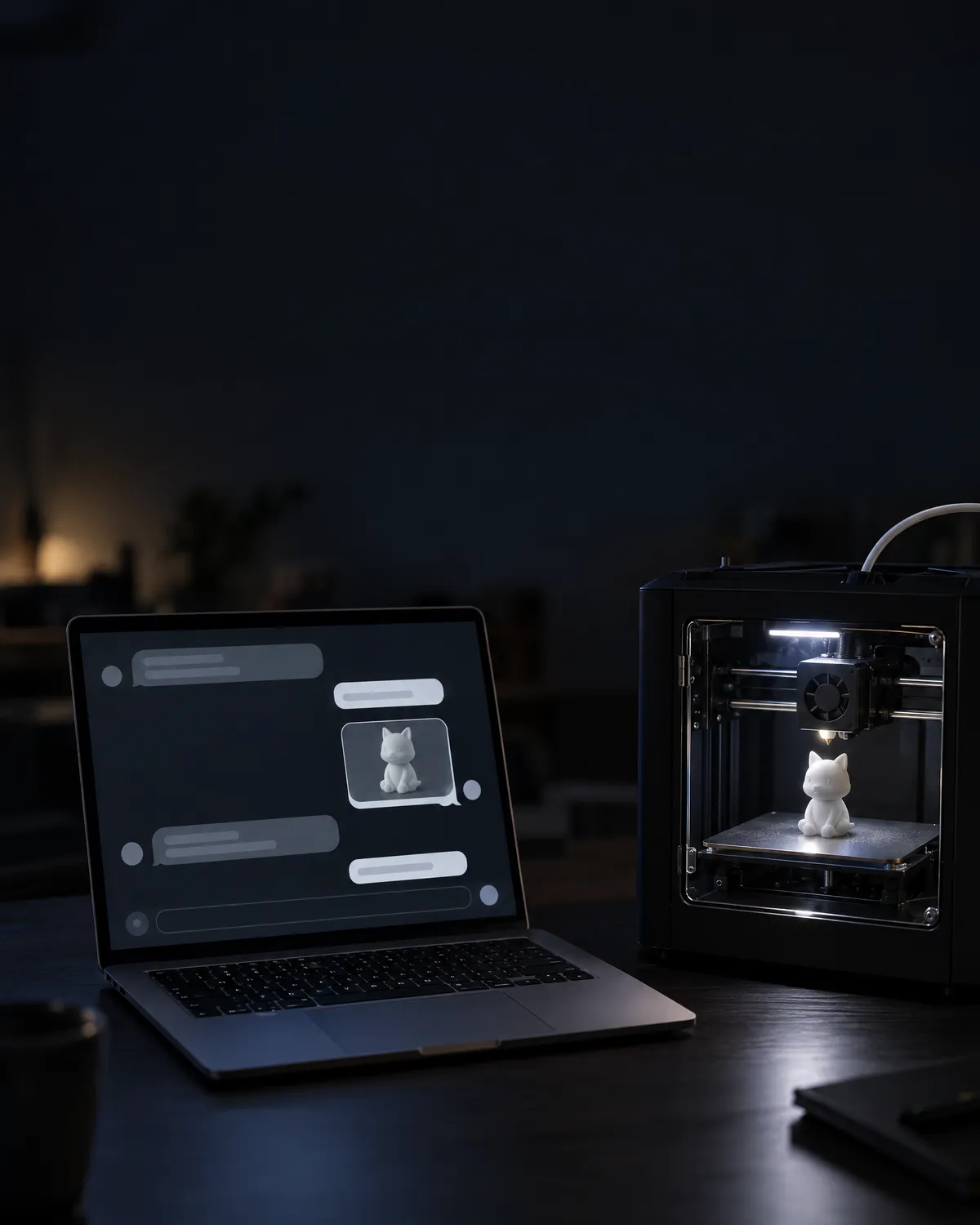
In practice, you can type into Claude “my Bambu Lab A1 is stringing between towers with PETG at 245 °C, see what usi3d says”, or ask ChatGPT “get me a usi3d quote for a small 120 mm dragon for the shelf”, without opening the website. Everything stays in your account: diagnoses in your history, models in My projects.
What your AI can do with usi3d
When you connect, you choose between two permissions. Each tool calls the same route the website uses behind the scenes, so it has the same limits, the same credits and the same errors.
| Permission | What it covers | Spends credits? |
|---|---|---|
| Fix problems and print | Diagnose a fault with the printer troubleshooting AI, talk it through until it's fixed, search printers, symptoms and spare parts, choose filament and see the plans | Diagnosis and chat, yes; choosing filament uses your plan's free daily uses |
| 3D models and projects | Upload photos, quote a model from text or photos, design it first and change it, create it, animate it, and search, rename, archive or restore your projects | Quoting, no; creating and animating, yes |
| Both | Check your credit balance, plan and account | No |
The server's instructions ask your assistant to tell you the cost and ask permission before spending. If the model comes from a photo of a drawing, the quote already says so and prices it accordingly; if you run out of credits, the tool passes the message back as it is so the AI can explain it.
How to connect usi3d to ChatGPT
Turn on developer mode
In ChatGPT, go to Settings → Apps & Connectors → Advanced settings and turn on developer mode, if your account offers it.
Create the connector
Press “Create”, name it usi3d, paste https://usi3d.com/mcp as the server URL and choose OAuth.
Grant access in usi3d
The “Connect to usi3d” page opens: sign in, tick what it can do and until when, and press Allow.
How to connect usi3d to Claude and Claude Code
On claude.ai or the desktop app: Settings → Connectors → Add custom connector. Name it usi3d, paste the server URL and press Connect; on “Connect to usi3d”, choose the permissions and expiry and press Allow.
In Claude Code you have two routes. Without a key, add the server with “claude mcp add --transport http usi3d https://usi3d.com/mcp”, type /mcp and grant access in your browser. With a key, add the Authorization header with “Bearer” and your API key to the same command.
Codex, Cursor and other clients with an API key
Create a key in My account → Developer → API, with the 3D creation permission if you want to create models. You give it a name and an expiry (7, 30, 60, 90 or 180 days, or a year); it is shown only once and you can have up to 5 live keys. Then, in My account → Developer → MCP, you'll find what to paste into each program, with a placeholder where your key goes:
- Codex: an mcp_servers.usi3d block in ~/.codex/config.toml with the URL and the environment variable holding your key.
- Cursor, VS Code and Windsurf: a usi3d entry under mcpServers with the URL and the Authorization header.
- Other clients: HTTP transport (Streamable HTTP), the server URL and the header Authorization: Bearer followed by your key.
The usi3d API: the same over HTTP
If you'd rather write the code yourself, the usi3d API gives access to the same things with the same key. For a diagnosis, POST /diagnosticos with the symptom and, optionally, photos. For a 3D model, first POST /generacion3d/presupuestos, which says how many credits it will cost without spending any, then POST /generacion3d/trabajos to confirm it; poll its status until it is “listo” (ready) and download its files. The result includes a spec sheet: mesh faces, dimensions in millimetres and the size of each file format.
Permissions, expiry and how to disconnect an app
- Each connected app gets access with the expiry you chose; when it runs out, it asks you again.
- You see all your apps in My account → Developer → MCP, with the date each was last used, and disconnect them with one click.
- Connecting the same app again revokes the previous connection. You can have up to 10 connected apps.
- “Connect to usi3d” warns that the app is unverified: the app sets its own name. Check it returns to the site you expect before allowing it.
- Resetting your password revokes your keys and connected apps.
What the MCP doesn't do
Buying credits, changing plan, creating or revoking keys and closing your account are done on the website. Tools that work on the model open in your browser don't go through the MCP either, such as Colours, Split into parts, Convert formats or Repair model. If you'd rather create by chatting inside usi3d, the AI agent does the same with the model in view.
Frequently asked questions
What is the usi3d MCP server URL?
https://usi3d.com/mcp. Add it as a custom connector in ChatGPT or Claude, or with an API key in Claude Code, Codex, Cursor and other MCP clients.
Which plan do I need to use usi3d in ChatGPT or Claude?
A plan with API access: Pro, Max or Business, plus a confirmed email. The Free plan doesn't include the API or the MCP.
Can my AI spend usi3d credits without telling me?
The server asks it to tell you the cost and ask permission before spending, and quotes cost nothing. It can also only use the permissions you granted, until the date you chose, and you can disconnect it at any time.
Can I create 3D models through the usi3d API?
Yes, with a key that has the 3D creation permission: you request a quote, confirm it and download the files when the job is ready.
How long does a ChatGPT or Claude connection to usi3d last?
You choose when connecting: from 7 days to a year. When it expires, the app asks for permission again.