Tutorials · · By the usi3d team
Text to 3D: how to describe your part so the AI models it well
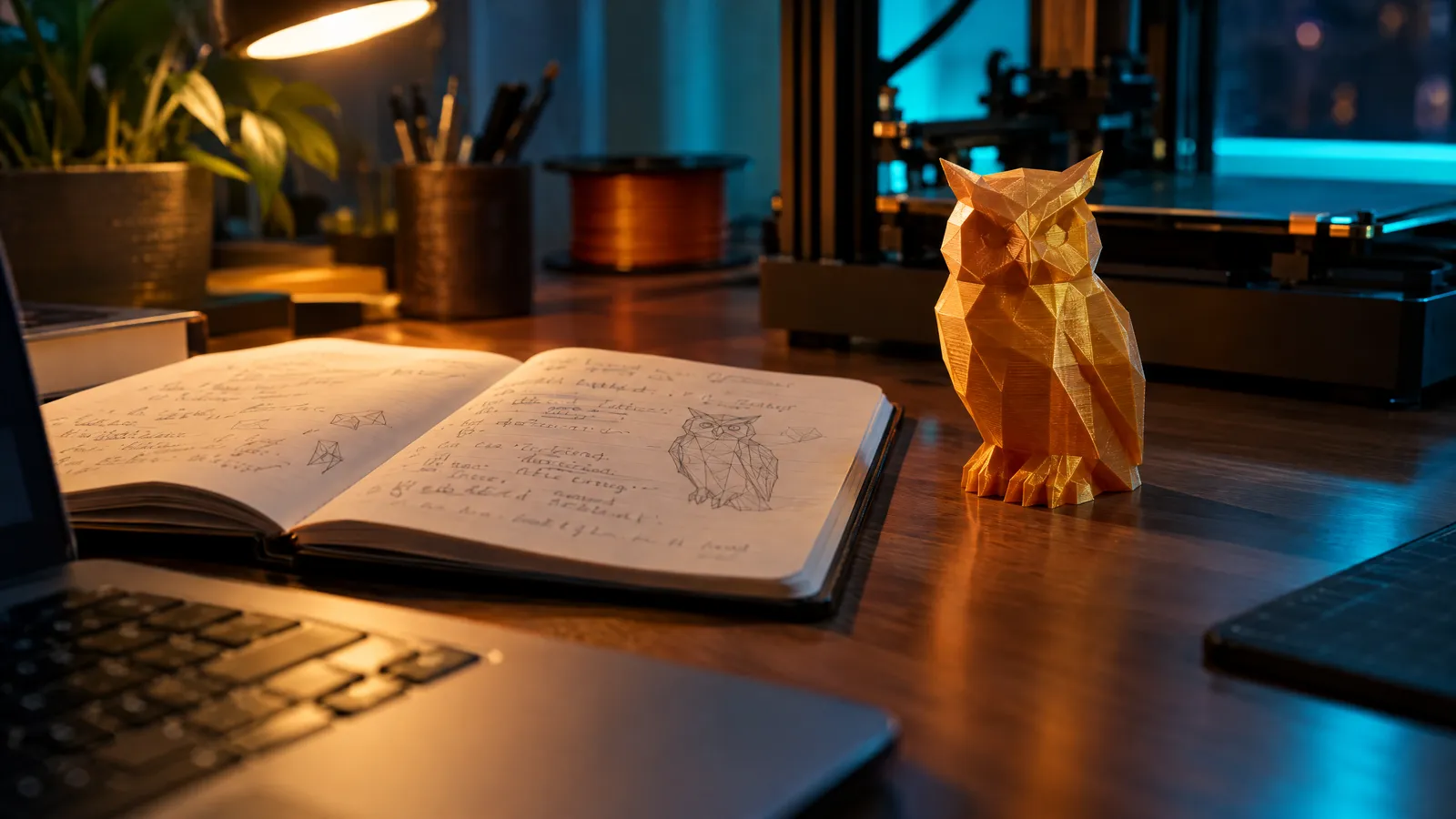
For the AI to model your part well, say what the object is, its shape and proportions, the details it needs, its style, its material and colour, and what it is for. One to three specific sentences are enough: “a faceted low-poly desk owl in amber PLA” works far better than “a nice owl”. Anything you leave out, the AI decides for you.
Key points
- A good text-to-3D prompt says what the object is, its shape, details, style, material and colour, and its use.
- Specific words (“faceted”, “round base”, “cable channel”) cut down what the AI has to guess.
- Text to 3D cannot reliably deliver exact dimensions, threads or fine lettering: for parts that must fit, use CAD.
- In usi3d's Text to 3D you type or dictate the description, see the cost before confirming, and every version stays in My projects.
Typing “a dragon” and getting a dragon is easy. Getting the dragon you pictured, sitting down, chubby and small enough for the shelf, depends on how you put it. Text-to-3D AI asks no questions: it takes your words and fills every gap with the most likely answer. This guide covers what is worth saying, what is not, and when text is the wrong starting point.
How the AI reads a description
Think of the AI as a fast sculptor who has never seen your idea. Every specific word closes a door. “Planter” leaves a thousand shapes open; “faceted geometric planter with its saucer” leaves a handful. Vague adjectives such as “nice”, “cool” or “modern” tell it almost nothing, because they mean something different to everyone.
Order helps too. Start with the object and its overall shape, move on to the details and finish with style and material. Cram three ideas into one long sentence and the AI tends to latch on to the first.
The formula: what to put in a text-to-3D description
| Part | Question it answers | Example |
|---|---|---|
| Object | What is it? | A headphone stand |
| Shape and proportions | What is its outline? Tall, wide, round? | With a round base and an upright arm that ends in a curve |
| Details | What must not be left out? | A channel in the base for the cable |
| Style | How does it look? | Minimalist, soft edges |
| Material and colour | What will it be printed in? | Matte coral PLA |
| Use or size | What is it for and how big? | For a desk; about 25 cm tall |
Put together: “A headphone stand with a round swivel base and a channel for the cable, in matte coral PLA.” You do not need every part every time. Object, shape and a couple of details already make a visible difference.
Good and bad prompt examples
| Weak description | Specific description | What changes |
|---|---|---|
| A nice owl | A faceted low-poly desk owl in amber PLA with a silky finish | Style and material are set: the AI stops improvising |
| A modern planter | A faceted geometric planter with its saucer, in translucent sage green PETG | The shape is no longer a mystery and the saucer appears |
| A desk organiser | A desk cable organiser with five curved slots, in slate blue PLA | The number of slots and their shape |
| A cool dragon | A small, rounded dragon sitting down, teal green with copper wings and belly | Pose, proportions and colour by area |
| A vase with patterns | A cylindrical narrow-necked vase with vertical spiral ribs, in matte white PLA | “Patterns” says nothing; “spiral ribs” does |
What to avoid when describing a part
- Scenes. “A knight fighting a dragon in a castle” is three objects and a background. Ask for one part; if you want the group, make it piece by piece.
- Negatives. “No wings” sometimes brings wings, because the word is in the sentence. Describe what you do want: “a dragon with its arms close to its body”.
- Text and lettering. An engraved name or a sign will not come out reliably legible. Add it later in your design software or slicer.
- Fine dimensions. “A 3.2 mm hole for an M3 screw” will not be respected. If the part has to fit another, that is a job for CAD.
Ask for shapes that print well
While you are describing, describe something printable. Ask for a flat base or a plinth (“sitting on a round base”), compact bodies and chunky parts. Outstretched wings or a thin sword in hand will need supports and may snap when you remove them. With a 0.4 mm nozzle, the thinnest parts should be at least 1.2 mm thick at the scale you intend to print.
When to use text and when to use an image
Text works when the idea is yours and no photo exists: an invented character, a planter with a particular shape, a decorative object. If the object exists, a photo is usually more faithful; we explain it in how to turn a photo into a 3D model. And if you have a pencil sketch, upload it to Image to 3D: a clear outline conveys proportions that are hard to put into words.
| Your starting point | Best option |
|---|---|
| An idea with no references | Text to 3D |
| An object in front of you | Image to 3D with a photo |
| A drawing or a sketch | Image to 3D with the drawing |
| An idea with some visual reference | Text to 3D with reference images |
| A part with exact dimensions | CAD software |
How to create a model from text on usi3d
Open Text to 3D
Go to Text to 3D or, if you would rather be guided through a conversation, the AI agent. If you are not sure where to start, try one of the ideas on the page and change it to suit you.
Type or dictate the description
Follow the formula: object, shape, details, style, material and colour. You can dictate it aloud with the microphone and add reference images.
Check the cost and confirm
Preparing the quote uses no credits. You see the cost before confirming and, if the generation fails, the credits come back.
Review the model
Turn it round in the viewer. Check thin parts, overhangs and the base: whatever the text did not say, the AI has made up.
Carry on with your part
Every version stays in My projects. From there you can paint it in Colours, cut it up with Split into parts or download it as STL or GLB.
How to fix a description that did not work
If the result is not right, do not rewrite the lot. Work out what went wrong and change only that: each new generation uses credits, and this way you learn which word made the difference. A few examples:
- Wrong proportions: add a comparison. “Big head, half the size of the body.”
- Too much detail: ask for “simple shapes, smooth surfaces”.
- Too plain: name the missing details, one by one.
- Wrong pose: describe it with verbs. “Sitting, with its tail curled round its feet.”
After a few tries you will learn which words the AI respects and which it ignores. If this is your first time on usi3d, our launch post maps out all the tools.
Frequently asked questions
What is text to 3D?
An AI tool that turns a written description into a 3D model. The AI interprets your words and fills in whatever you leave out.
How do I write a good prompt to generate a 3D model?
Say what the object is, its shape and proportions, the key details, the style and the material and colour, in one to three specific sentences. Avoid vague adjectives such as “nice”.
Can I ask for exact dimensions in text to 3D?
Not reliably. The AI reproduces the shape, not the measurements. Set the size in your slicer and use CAD for parts that have to fit or take screws.
Which language should I write the description in?
On usi3d you can write it in English or Spanish. What matters is that it is specific.
What should I do if the model does not look like what I asked for?
Change one thing in the description at a time: the pose, the style or a detail. That way you know which word made the difference.