Tutorials · · By the usi3d team
usi3d's AI agent: ask for your 3D model in your own words and it does it with you
usi3d's AI agent is a chat that gets things done for you inside the platform. Since 3 November 2026 you tell it what you want (a part, a photo to turn into 3D, a printer fault) and it handles it with usi3d's tools: it checks your credits and projects, prepares the 3D model with its cost and opens Colours or Split with your model already loaded. Anything that spends credits or changes your account is shown to you first and only happens when you press “Confirm”.
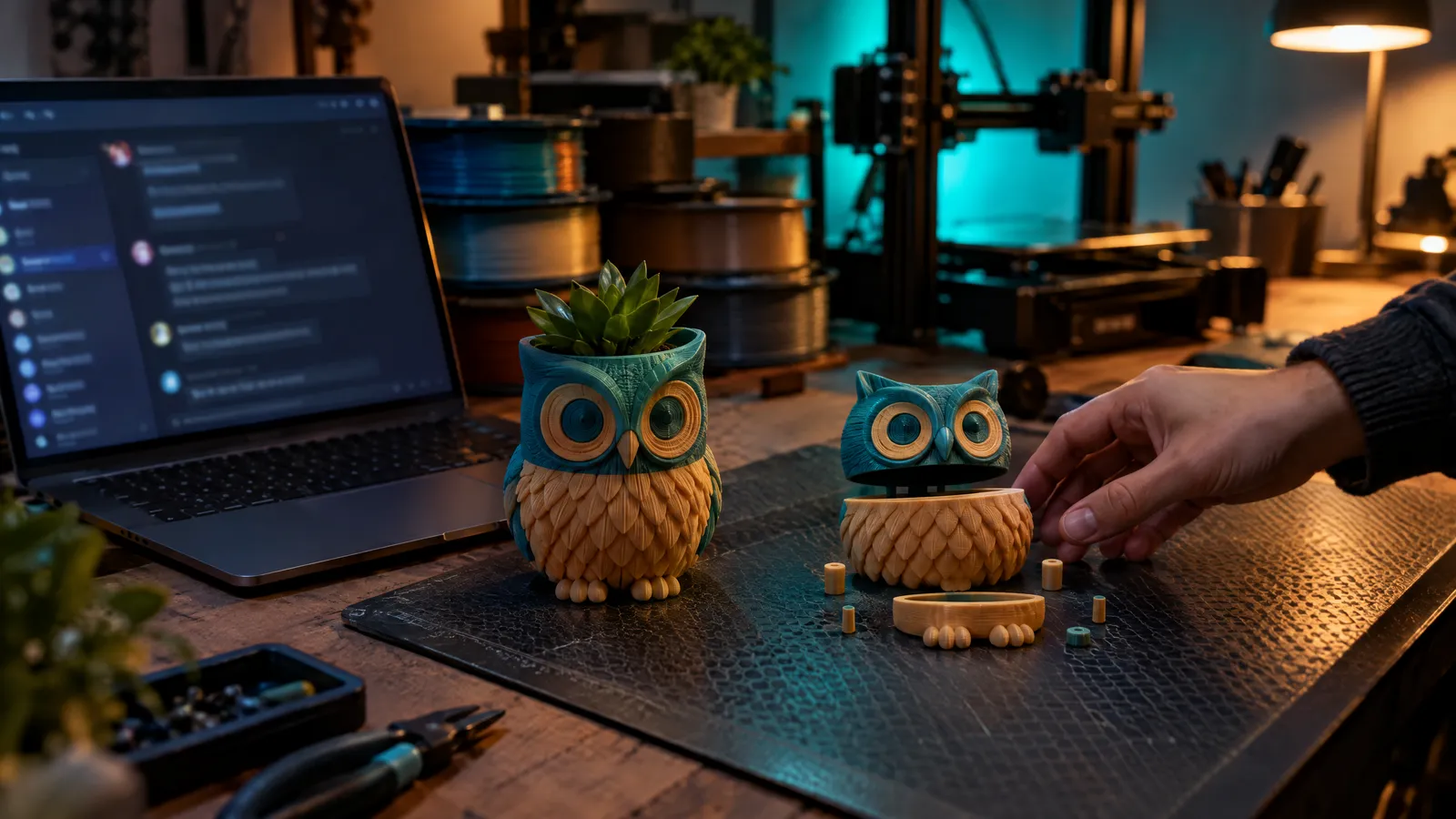
Key points
- The agent talks with you and uses usi3d's tools: credits, projects, 3D creation, printer faults, filament and the in-browser tools.
- Talking to it uses no credits. Creating a model, opening the troubleshooting chat or tidying your projects is left as a proposal, with its cost and your balance, until you confirm it.
- You type, dictate or attach up to four photos; every conversation is saved in your account so you can pick it up again or delete it.
- Colours and Split into parts open with your model loaded: you try them free in the browser and, since 3 November 2026, the download comes with Pro, Max or Business.
- Anything that arrives in a photo or a file is treated as information, never as an instruction.
What usi3d's AI agent is
Making a printable part usually takes several steps and several screens: describe it, check the design, generate the 3D, paint it, split it if it doesn't fit the bed and pick the filament. The AI agent brings them into one conversation. You write to it as you would to someone who knows the platform, and it looks things up, prepares them and opens what you need.
What sets it apart from a tool finder is that it works with your account. It knows how many credits you have left and where they come from (your plan or packs), finds your projects and models by name and shows you what it has done on cards: a quote, a model with its size and weight, the list of your projects.
What it can do and what it asks you to confirm
Anything that only looks something up, it does on its own. Anything that spends credits or changes your account is prepared as a proposal, with a title, the cost and your balance, and two buttons: “Confirm” and “Cancel”. If your balance falls short, the button takes you to buy credits. A proposal you don't confirm expires after 30 minutes.
| What you ask | What the agent does | Does it spend? |
|---|---|---|
| “How many credits do I have left?” | Checks your balance, from your plan and from packs | No |
| “Find my dragon project” | Finds it in My projects and shows it to you | No |
| “An owl-shaped planter, 12 cm tall” | Prepares the 3D quote and gets the creation ready | Only when you confirm, with the cost in front of you |
| One or more photos and “make it 3D” | Prepares the 3D from your photos (up to four) | Only when you confirm, with the cost in front of you |
| “Paint the eyes yellow” | Opens Change colours with your model loaded | Free to try; the download comes with Pro, Max or Business |
| “Split it for my printer” | Opens Split into parts with your model | Free to try; the download comes with Pro, Max or Business |
| “The first layer won't stick” | Looks up your printer and the symptom and offers to open the troubleshooting chat | The proposal tells you |
| “PLA or PETG for an outdoor planter?” | Recommends a filament for your part | No |
| “Archive the planter project” | Leaves it as a proposal and does it when you confirm | No credits, but it changes your account, so it asks |
How to use it: type, dictate or show a photo
- Type up to 2,000 characters per message. The more specific the part, the better: sizes in millimetres, what it's for, style and pose.
- Dictate with the “Dictate” button if your hands are busy at the printer.
- Show up to four PNG, JPG or WEBP photos: the whole part, well lit, on a plain background. Tap a thumbnail to see it full size.
- Reply with a tap: under the latest answer you get options with the usual next step (“Better in Studio quality”, “How long does it take?”).
- Pick up or delete: “My conversations” lists yours. Deleting one can't be undone, and what you created stays in My projects.
You need a usi3d account: the agent works with your credits and your projects. Each plan comes with a number of messages a day (more with Pro and Max), and the page tells you how many you have left. If one day it can't reply, the “Open it yourself” button opens the right tool with what you had written, so nothing is lost.
Step by step: from an idea to a painted, split planter
A full example: an owl-shaped planter 18 cm tall, in two colours, for a small printer such as the Bambu Lab A1 mini, with its 180 × 180 × 180 mm build volume.
Describe the part
Write: “I want an owl-shaped planter, 18 cm tall, big eyes, raised feathers and a drainage hole in the base”. The agent usually fills in what matters for printing (flat base, printable wall thickness) and shows you the quote: the quality, the credits and your balance. What makes a good description is covered in how to describe your part.
Compare before spending
Ask “and in Studio?” and it prepares the quote for that quality. You haven't spent anything yet: preparing and comparing are free.
Confirm the creation
Press “Confirm” on the proposal you want. The model is created and saved in My projects; it takes a few minutes. Ask “how's my planter going?” and it shows you its card with the views, the size in millimetres and the grams of filament.
Paint it
Write “I want yellow eyes and a brown body”. The agent opens Change colours with the planter already loaded; you paint by areas and export as GLB or 3MF. The details are in how to paint a model in several colours.
Split it if it doesn't fit
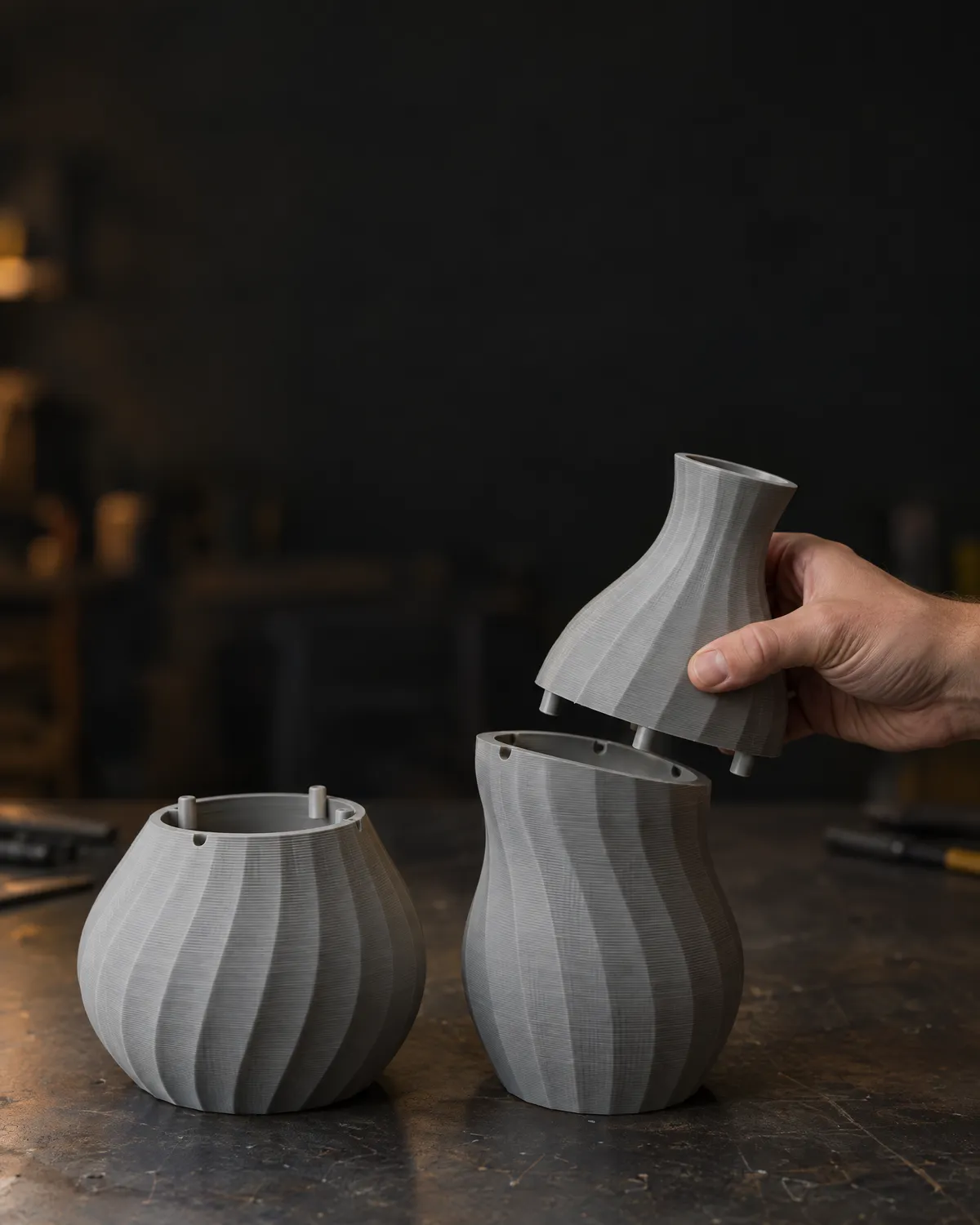
At 18 cm tall it won't fit comfortably on a 180 mm bed. Tell it “it doesn't fit my A1 mini” and it opens Split into parts with your model: you choose the printer and get the parts with numbered joints. More in how to print a part bigger than the bed.
Choose the filament
For a planter that will sit in the sun, ask which material to use. For outdoors the answer is usually PETG (nozzle at 230-250 °C, bed at 70-80 °C) or ASA, which handles UV better (240-260 °C and a 90-110 °C bed, ideally in an enclosed printer). The full comparison is in PLA, PETG, ASA or TPU.
What if my printer is misbehaving?
Describe the symptom the way you see it: “the first layer won't stick”, “there's stringing between parts”, “the extruder is clicking”. The agent looks up your printer model and the symptom, can check the troubleshooting chats you already had and offers to open one with your text and photos. Once you confirm, the troubleshooting AI asks what it needs and gives you the steps, with each brand's official sources. If you'd rather start on your own, there are the troubleshooting guides and the article on a first layer that won't stick.
Your projects, tidied from the chat
Once you have a few parts, My projects fills up. You can ask “show me my archived projects”, “rename the owl to Owl planter 18 cm” or “move the test keyring to the bin”. Anything that changes your account comes up as a proposal and happens when you confirm; the bin lets you restore it. It can also hollow out a saved model or change its triangle count, always with your confirmation.
When to go straight to a tool
If you already know what you need, each tool has its own page. Text to 3D and Image to 3D come with their tips and examples; Colours and Split into parts also work with an STL you downloaded elsewhere. And if your idea is only half-formed, Guided projects gives you specific parts with options to customise.
The agent also answers through the usi3d API and from your AI assistant through the MCP connector, with the same rules: anything that spends is left as a proposal that has to be confirmed separately. How to connect it is in usi3d in your assistant.
Tips so the agent understands you first time
- Give sizes. “8 cm tall” or “for a 220 × 220 mm bed” saves a round trip.
- Say what it's for. An outdoor planter, a bracket that takes weight or a display figure need different materials and quality.
- One part per conversation. If you switch project, start another so the agent doesn't mix your planter with your keyring.
- Ask before confirming. “What's the difference between Detail and Studio?” or “how many credits would I have left?” cost nothing.
- If it gets it wrong, correct it. “No, I wanted the owl sitting down” is enough for a new quote.
Frequently asked questions
What is an AI agent for 3D printing?
It's a chat that understands what you want to do and does it with the platform's tools: at usi3d it prepares the 3D model with its cost, helps with printer faults, recommends filament and opens Colours or Split with your model.
Does talking to usi3d's agent use credits?
No. Talking to it uses no credits; each plan comes with a number of messages a day. Only what you confirm spends credits, such as creating a 3D model, and you see the cost first.
Can the agent create a model or spend credits without my permission?
No. Anything that spends credits or changes your account is left as a proposal with its cost and only happens when you press “Confirm”. It also never pays, buys credits or plans, or deletes your account.
Are my conversations with the agent saved?
Yes, in your account, so you can pick them up again from “My conversations”. You can delete them whenever you like; what you created stays in My projects.
Can I use the agent without an account?
You need an account to chat with it, because it works with your credits and your projects. Without signing in, the page opens the right tool with what you wrote.