News · · By the usi3d team
Animate 3D: turn your model into a game-ready animated character (GLB and FBX)
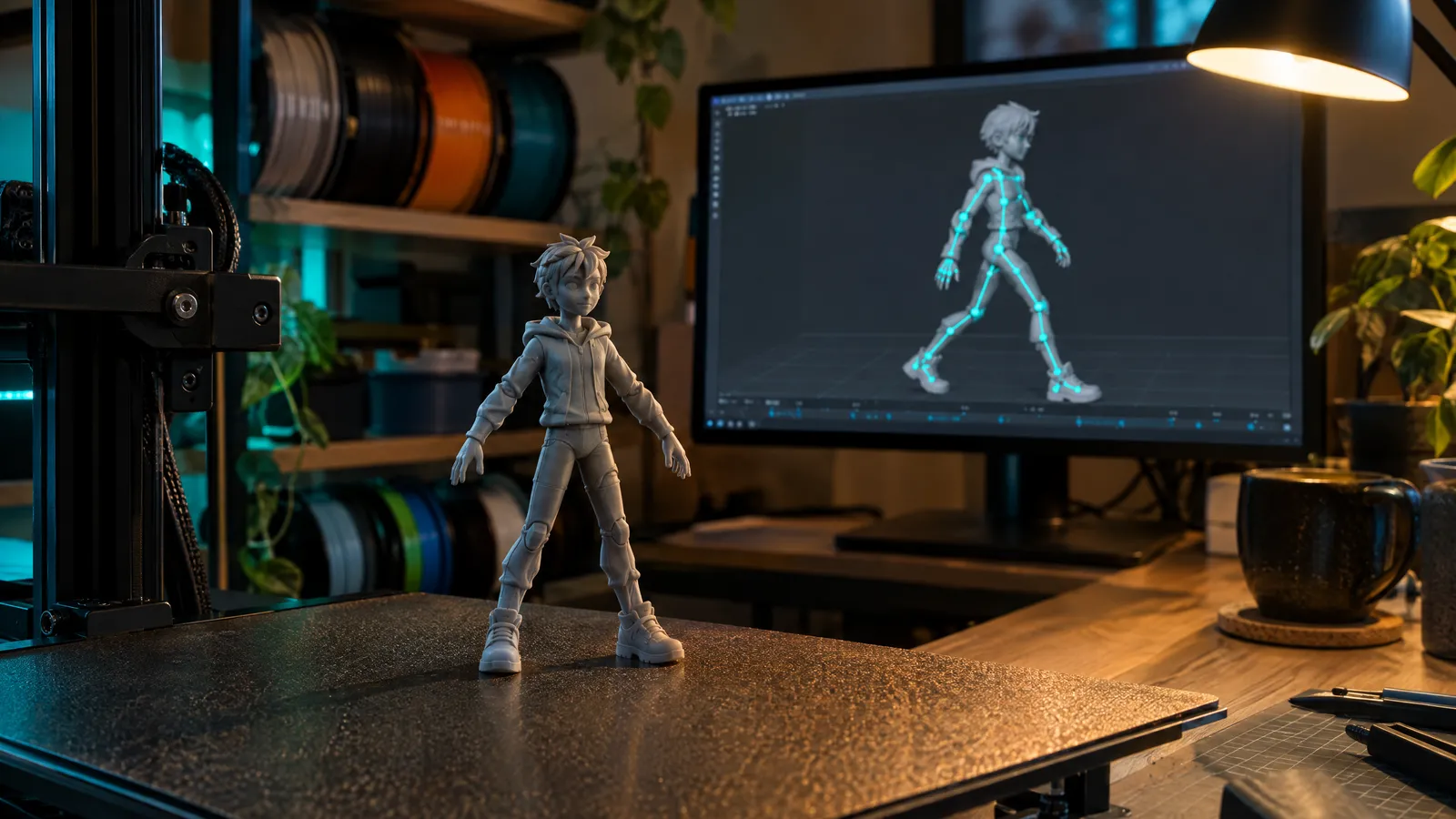
Animate 3D, launching today on usi3d, turns a 3D model into a character with a skeleton and animations for your game. You open a GLB, STL, 3MF or OBJ, the skeleton fits itself to the shape and you pick the animations (walk, run, jump, wave…), which you watch live, free and in your browser. With Pro, Max or Business you download it as GLB and FBX; if you would rather have a clip for social media, the second mode animates it as a video.
Key points
- Animate 3D rigs a 3D model without you knowing how to rig: the skeleton fits itself and you can adjust its joints.
- It includes 30 animations for standing characters, 12 for four-legged animals and 5 each for figures on a base and for solid objects.
- Fitting the skeleton and previewing the animations is free and runs in your browser; downloading GLB and FBX comes with the Pro, Max and Business plans.
- The skeletons and animations are public domain (CC0): you can use them in your game even if you sell it.
- Video mode animates your design in a 5 or 10-second clip, landscape or portrait, using credits, with the cost shown before you confirm.
What Animate 3D does
Until now, getting a figure into a video game meant a detour through Blender: building a skeleton, assigning every vertex to the bones that move it and hunting for animations that fit that skeleton. Studios call it rigging, and for a beginner it can eat a whole afternoon per character.
Animate 3D handles it in two modes. Animated model for games places the skeleton, works out how each bone deforms the mesh and applies ready-made animations; you take away a GLB or FBX that opens in your engine. Video animates your design with AI in a short clip for your website or social media. This post is mostly about the first, which is the new part and the one that saves the most work.
How to turn your model into an animated character
Open your model
A GLB, STL, 3MF or OBJ up to 160 MB and 3 million triangles or, with Pro, Max or Business, a model from your projects. A figure made with Image to 3D or Text to 3D works, and so does one you built in another program.
Say what it is
Standing character, four-legged animal, figure on its base or solid object. Each option uses a different skeleton: the human one, the quadruped, a partial one that only moves the head and tail, or none at all.
Set size and detail
Choose its in-game height in centimetres and the level of detail: Light (10,000 triangles), Normal (30,000) or Detailed (60,000), with the texture at 1024 or 2048 pixels. If the model is not facing forward, ‘Rotate 90°’ straightens it.
Check the skeleton
It fits itself to the silhouette, and the tool measures how much the mesh stretches as it moves, telling you whether it ‘moves cleanly’, ‘moves well’ or ‘would improve with a tweak’. You can drag the joints, with ‘Symmetric’ to move both sides at once; on a figure, you mark the tail by tapping it.
Pick the animations and save it
They come in packs and play live in the viewer. You save it to My projects on any plan and, with Pro, Max or Business, download it as GLB and FBX.
Which animations each type of model gets
| Type of model | Skeleton | Animations | Some examples |
|---|---|---|---|
| Standing character | Human, 66 bones | 30 | Walk, jog, sprint, jump, roll, sword attack, cast a spell, wave, dance, swim |
| Four-legged animal | Quadruped, 49 bones | 12 | Walk, run, sneak, sit, bark, howl, bite |
| Figure on its base | Partial: head and tail (the base stays still) | 5 | Tail wag, head tilt, happy, nod, look around |
| Solid object | No skeleton: it moves as a whole | 5 | Spin, float, bounce, sway, nod |
The character animations come in three packs: movement, action (jabs, sword, pistol, take a hit, fall down) and gestures and everyday life (talk, sit, pick up, arms crossed). For a platformer prototype, idle, walk, run and the three stages of the jump (take-off, in the air and landing) are all you need.
GLB and FBX: what you get and which engines it works in
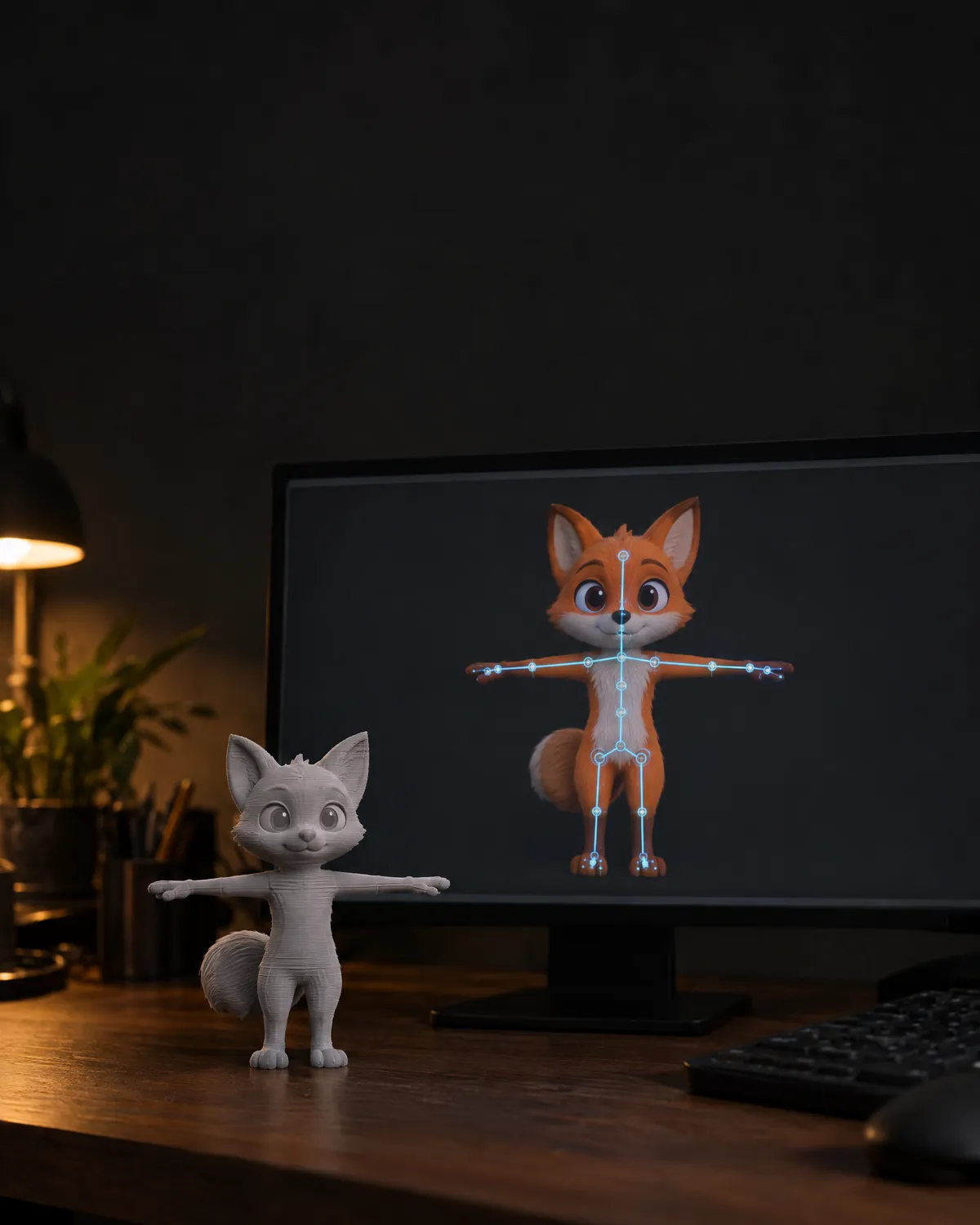
The model arrives in your engine in metres, Y up, facing forward, with one clip per animation and the texture embedded. The human skeleton uses the bone names of the Unreal mannequin, which many animation and retargeting systems expect.
Before launch we checked it with real importers: the GLB files pass Khronos’s official glTF validator with no errors or warnings, and both GLB and FBX open in Godot 4.7 and Blender 5.2 with every bone, each animation at its exact length and the 2048-pixel texture. The FBX (binary, version 7.4) follows the structure Unity and Unreal import; we have not yet tested it in those two engines ourselves.
Which should you pick? GLB if you work in Godot or a web viewer, FBX if your engine is Unity or Unreal, where it is the long-standing format. We go through the differences between formats in STL, OBJ, GLB and 3MF.
How many triangles a game character needs
A model made with AI or from a scan can top half a million triangles: ideal for printing, far too heavy for a game. Animate 3D reduces it while preparing it, and the right figure depends on where the character will live:
- Light, 10,000 triangles: mobile or browser games, enemies that appear in groups, characters seen from a distance.
- Normal, 30,000: the lead character in a third-person PC game.
- Detailed, 60,000: close-ups, cutscenes or a figure viewer.
Textures follow the same logic: 1024 pixels is plenty for a character that is small on screen, while 2048 shows in close shots and takes roughly four times the memory.
If you want it as a video instead
The second mode is for showing a piece off. You describe how it should move (‘turns slowly on its base, like in a shop window’ or ‘the dragon slowly beats its wings and looks at the camera’) and the AI animates your design in a 5 or 10-second video, landscape or portrait for Reels, TikTok and Shorts, in Standard or Pro quality.
This mode uses credits (plans and credits): you see the exact cost before confirming and, if the animation fails, the credits come back. The video stays in My projects, anyone can watch it and Pro or Max lets you download it as MP4. The AI moves what it sees in the starting frame and may change a detail, so review it before you publish it.
Can I use the animations in a game I sell?
Yes. The skeletons and animations that ship with the animated model are public domain (CC0 1.0), from the Mesh2Motion and Quaternius projects: you can use them in your game, commercial or not, without paying or crediting anyone. What you do need is the right to use the model you animate: if you made it, no problem; if you downloaded it, check its licence.
And if you like the character enough to want it on your shelf, it is the same model you can print. To get it ready, read how to make a 3D figure from a photo.
Frequently asked questions
How do I rig a 3D model without knowing how to rig?
With usi3d’s Animate 3D you open the model (GLB, STL, 3MF or OBJ), say whether it is a character, an animal, a figure or an object, and the skeleton fits itself. You can adjust the joints by hand and watch the animations live.
Does the animated model work in Unity, Unreal or Godot?
It comes out as GLB and FBX, in metres, facing forward, with one clip per animation. We have tested it in Godot and Blender; the FBX follows the structure Unity and Unreal import.
How much does it cost to animate a model for a game on usi3d?
Fitting the skeleton and previewing animations is free and uses no credits. Saving it to My projects works on any plan; downloading the GLB and FBX needs Pro, Max or Business.
Can I sell a game that uses these animations?
Yes: the skeletons and animations are CC0, public domain. You do need the rights to the model you animate.
What is the difference between the game mode and the video mode?
Game mode gives you a rigged 3D file that moves inside an engine. Video mode is a 5 or 10-second clip of your design in motion for social media or your website, and it costs credits.